If you sell on Flipkart, you download a PDF of shipping labels for every batch of orders. Printed as-is, each label usually sits on a full page with a lot of empty space around it. That wastes paper on an ordinary printer, and on a thermal label printer it can come out tiny, cut off, or spread across several labels.
This guide shows how to crop every label in the PDF in one go, then print them either on a thermal label printer or several to a sheet on an ordinary A4 printer, without losing barcode quality.
Quick answer: Open CurePDF's free Flipkart Label Cropper, choose your labels PDF, drag a box around the label on one page, and pick Thermal Printer (one label per page) or A4 Sheet (several per page). Click Crop Labels and download. The same crop is applied to every page, and the file is processed in your browser.
CurePDF is an independent tool. It isn't affiliated with, endorsed by, or operated by Flipkart.
Why Crop Your Labels at All?
- Thermal printers print one label at a time. A full A4 page sent to a 4 × 6 inch label either shrinks until the barcode is hard to scan, or gets cut off.
- A4 printers waste paper. One label per A4 sheet means a stack of mostly blank paper for every dispatch.
- Cropping by hand is slow. A batch can have dozens of pages, and cropping each one separately in a PDF editor takes far longer than packing the orders.
How the Label Cropper Works
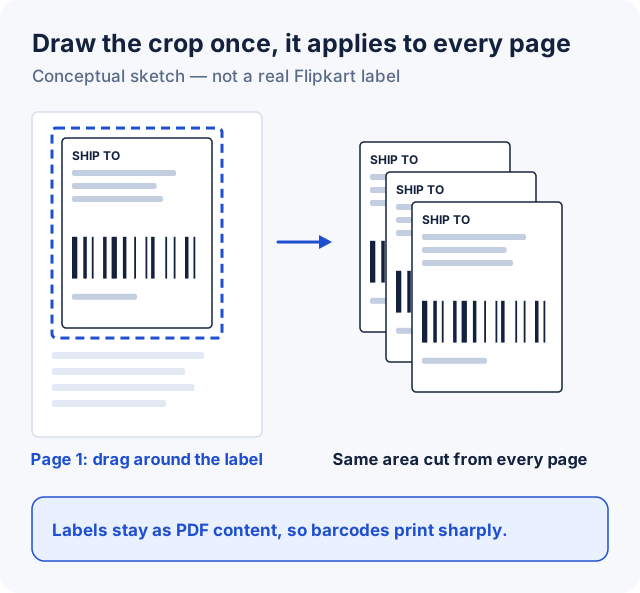
You draw one rectangle, and the cropper cuts that same area from every page in the PDF. The crop is stored as a position on the page, so it works for every page as long as your labels sit in the same place on each one, which they normally do within a batch.
Each label is copied as PDF content, not turned into a picture, so text and barcodes stay as sharp as in the original file.
Step by Step
- Download your labels PDF from your Flipkart seller account, as you normally would.
- Open the Flipkart Label Cropper and drag the PDF onto the page, or click Select PDF file.
- Find a clear label. Use the ‹ and › buttons to move between pages if the first page isn't typical.
- Drag a box around the label. Include the whole label: the barcode, addresses, and any order details you need. Leave a little white space around the edge rather than cutting it close. The hint under the page confirms "Crop area set — it will be applied to every page."
- Choose the output:
- Thermal Printer for a label printer: one label per page, each page exactly the size of your crop.
- A4 Sheet for an ordinary printer: choose 1, 2, 4, 6, 8, or 9 labels per sheet, and optionally Landscape sheet.
- Click Crop Labels, then Download PDF.
- Print one page first to check the layout before printing the whole batch.
It works the same on a phone: you draw the crop box with your finger.
Tip: Before cropping, check the last page of the PDF as well as the first. If a batch mixes different layouts, the one crop won't fit every page. Move those pages into their own file with Split PDF and crop them separately.
A4 Sheet or Thermal Printer?
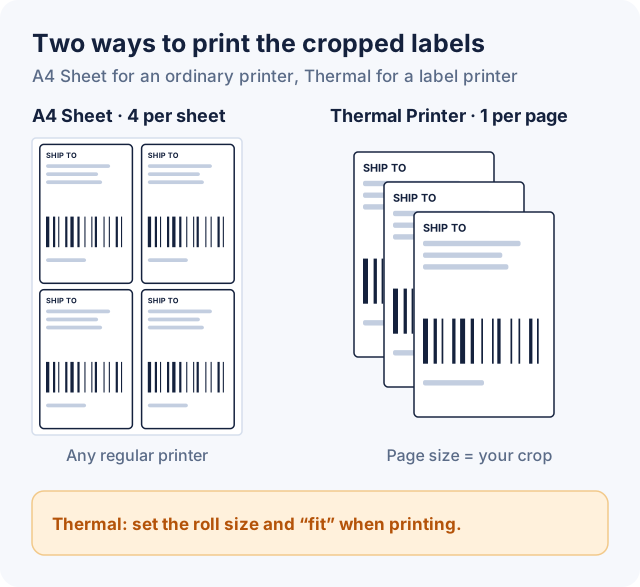
A4 Sheet: several labels per page
The cropper divides each A4 page into a grid with a 6.35 mm margin, then scales each label to fit its cell without stretching it. The table shows how big each cell is. It also shows how big a tall label with the proportions of a 4 × 6 inch label (2 : 3) prints in each layout.
| Labels per sheet | Grid | Cell size, portrait | 2 : 3 label prints at | Same, landscape sheet |
|---|---|---|---|---|
| 1 | 1 × 1 | 197 × 284 mm | 190 × 284 mm | 132 × 197 mm |
| 2 | 1 row × 2 | 95 × 284 mm | 95 × 143 mm | 132 × 197 mm |
| 4 | 2 × 2 | 95 × 139 mm | 93 × 139 mm | 64 × 95 mm |
| 6 | 2 rows × 3 | 62 × 139 mm | 62 × 92 mm | 64 × 95 mm |
| 8 | 2 rows × 4 | 45 × 139 mm | 45 × 67 mm | 64 × 95 mm |
| 9 | 3 × 3 | 62 × 91 mm | 60 × 91 mm | 41 × 62 mm |
Calculated from the cropper's layout for A4 (210 × 297 mm). Your label's shape changes the exact numbers. Three things stand out for a tall label:
- 4 per portrait sheet prints almost as large as 2 per sheet (93 × 139 mm against 95 × 143 mm) and uses half the paper. For most sellers it's the best default.
- 8 per landscape sheet prints labels the same size as 6 per landscape sheet (64 × 95 mm), so if that size is readable for you, 8 saves more paper.
- 8 per portrait sheet shrinks a tall label to 45 × 67 mm. Check that the barcode still scans before using it.
After printing, cut the labels apart and stick them on with tape, or print on A4 sticker sheets that match your layout.
Thermal Printer: one label per page
Each label gets its own page, exactly the size of the area you cropped. The cropper doesn't force a fixed size like 4 × 6 inches, because it can't know your label roll. So set the size when you print, as described next.
Printing on a Thermal Label Printer
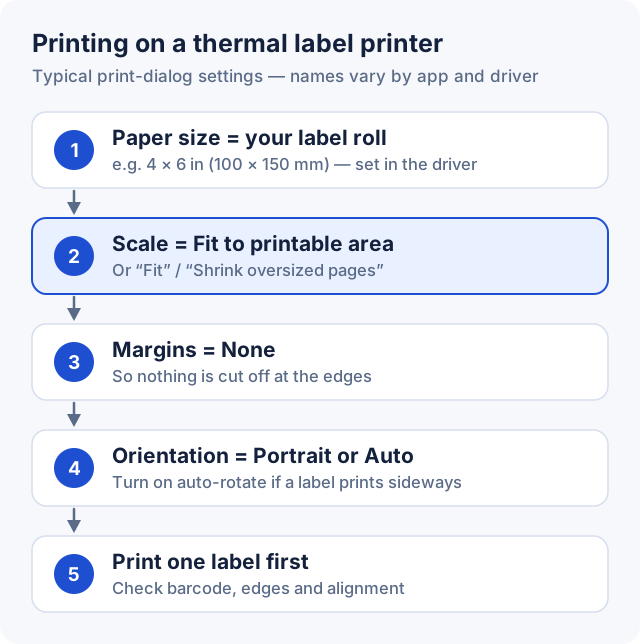
- Set the paper size to your label roll in the printer's own settings (on Windows, Printing preferences for that printer). A common size is 4 × 6 inches, about 100 × 150 mm. Use whatever size your rolls actually are.
- Scale the page to fit. In the print dialog, choose Fit to printable area in Chrome, Fit in Adobe Acrobat, or the equivalent in your PDF viewer. Your crop won't be exactly the roll size, and fitting scales it without cutting anything off.
- Set margins to none, if the option exists, so the label uses the whole sticker.
- Check the orientation. If labels come out sideways, switch between portrait and landscape, or turn on auto-rotate.
- Print one label, then the batch. Check the edges, the barcode, and that each label starts at the top of a new sticker.
Common mistake: Printing at "Actual size" when the crop is bigger than the label roll. The printer then cuts off whatever doesn't fit, often the barcode. Use a fit-to-page option unless your crop exactly matches your roll.
If every label prints blank, faint, or on two stickers, that's usually a printer calibration issue rather than a problem with the PDF. Most thermal printers have a calibration or "media detection" routine that teaches them where each sticker starts; see your printer's manual.
Handy Extras
- Several label PDFs from one day? Combine them with Merge PDF first, so you crop once and print one file. This only works if all the labels sit in the same place on the page.
- Need a different order? Rearrange, rotate, or remove pages with Organize PDF before cropping.
- Password-protected PDF? The cropper can't open it. If you know the password, remove it first with Unlock PDF.
- Need images instead of a PDF? PDF to JPG turns each cropped label into an image. Keep the PDF for printing, though: it prints barcodes more sharply.
- Keep the original file. The cropped PDF only contains the area you selected. If you need anything else from the original pages later, you'll want the file you downloaded from Flipkart.
Frequently Asked Questions
How do I crop Flipkart labels for a thermal printer?
Open the labels PDF in CurePDF's Flipkart Label Cropper, drag a box around the label on one page, choose Thermal Printer, and download. Then print with the paper size set to your label roll and the scale set to fit.
Can I crop all labels in the PDF at once?
Yes. You draw the crop once and it's applied to every page, as long as the labels sit in the same place on each page.
What size is a Flipkart shipping label?
CurePDF doesn't set or assume one. In Thermal Printer mode, each page is the size of the area you crop, and your printer scales it to your label roll. 4 × 6 inches (about 100 × 150 mm) is a common thermal label roll size, but use the size of the rolls you actually have.
How many labels can I print on one A4 sheet?
You can choose 1, 2, 4, 6, 8, or 9 per sheet, in portrait or landscape. For tall labels, 4 per portrait sheet is a good balance: each prints at about 93 × 139 mm.
Will cropping make the barcode blurry?
No. The cropper copies each label as PDF content rather than converting it to an image, so barcodes stay as sharp as in the original. A4 layouts with many labels per sheet do shrink them, so test-scan one if you use 8 or 9 per sheet.
Is my labels PDF uploaded to CurePDF?
No. The Flipkart Label Cropper processes the file in your browser, so customer names and addresses on your labels aren't sent to CurePDF's servers.
Does it work on a phone?
Yes. You can choose the file and draw the crop box with your finger in a mobile browser.
Is CurePDF affiliated with Flipkart?
No. CurePDF is an independent, third-party tool, not affiliated with, endorsed by, or operated by Flipkart.
Ready for today's dispatch? Open the Flipkart Label Cropper and crop your whole batch in one go.