A PDF is great for sharing something that isn't supposed to change — until it needs to change. A five-year-old resume, a contract template reused for every new client, a report with a paragraph that needs to land in a different document: all of it locked inside a format built to resist editing. PDFs are designed to look the same on every screen and printer, which is exactly what makes them frustrating the moment you need to add a sentence, fix a typo, or update a date. Converting that PDF to Word turns flattened, read-only text back into an actual document you can open, revise, and save, instead of a page you can only look at.
When You'll Need This
This conversion earns its place any time a PDF is standing between you and an edit you actually need to make. An old resume.pdf with no matching Word file anywhere on your computer needs a new job added to the work history, and rebuilding the whole layout from scratch just to add one bullet point wastes an afternoon. A contract survives only as a signed PDF, and the next client needs the same agreement with a new name, date, and a couple of clause tweaks — retyping a multi-page contract by hand invites mistakes in the parts that matter most. A paragraph buried in a quarterly report needs to be pulled out and reused in an email or a different document, and copying text straight out of a PDF viewer often brings broken line breaks and mangled spacing along with it.
Going the other direction is a separate job with its own tool: if you're starting from a Word document and need a PDF instead — for something that shouldn't be edited further — see how to convert Word to PDF.
How to Convert a PDF to Word Step by Step
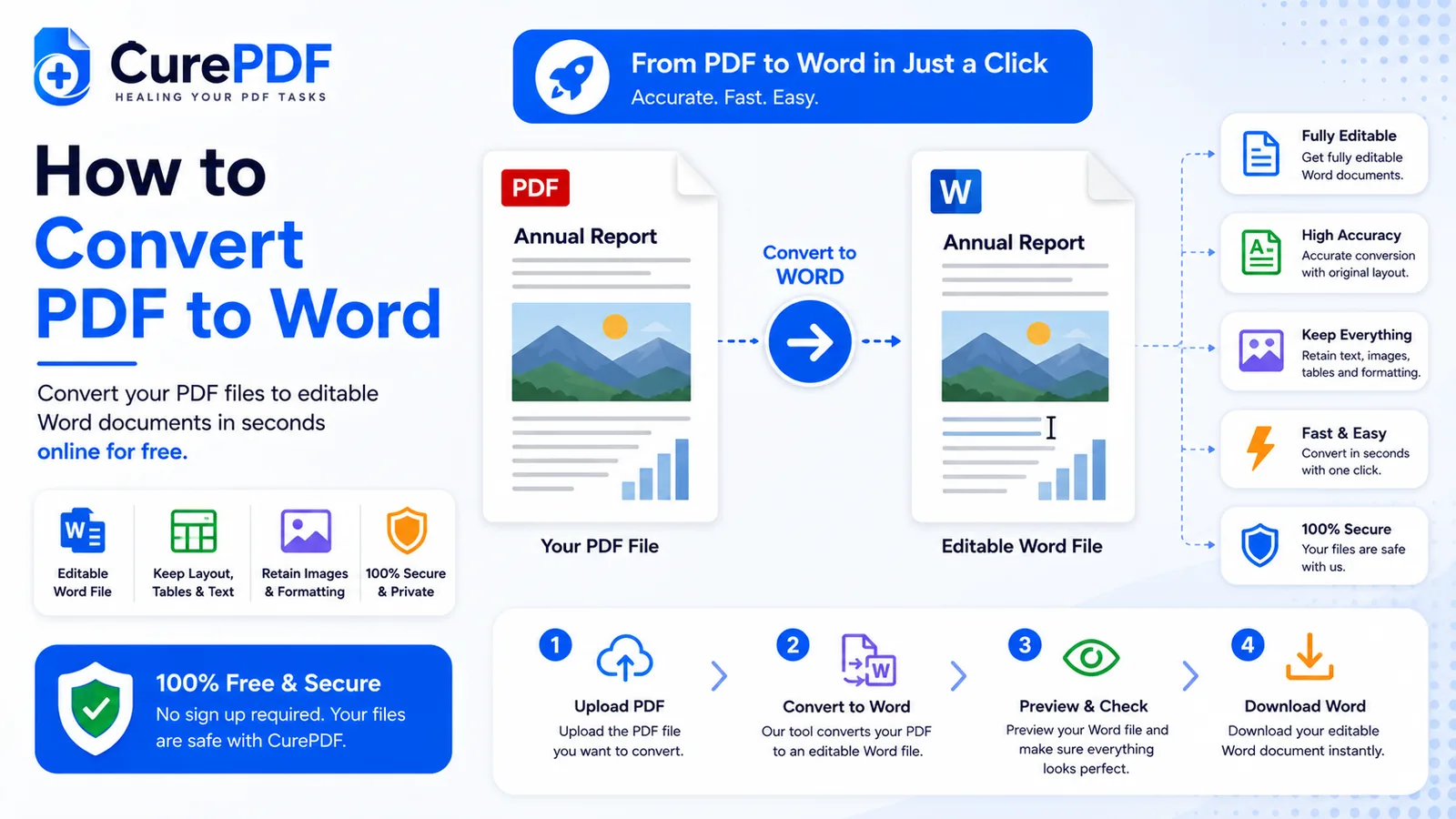
- Start by adding your file to CurePDF's PDF to Word tool — drop it into the upload area, or click through and select it from your device. There's no account to create first, and you can run the conversion as many times as you need.
- The tool reads the document and extracts its text and layout — headings, paragraphs, tables, and spacing are identified and rebuilt as real Word content rather than a flattened picture of the page. If the PDF is a scanned image rather than a document with selectable text — a photographed page, an old scan saved as a PDF — the tool runs OCR (optical character recognition) first, recognizing the shapes of letters and words on the image and converting them into actual editable text before the layout reconstruction happens.
- Download the result as an editable
.docxfile once conversion finishes. A short, simple document takes only a few seconds; longer or more visually complex files take a little longer while the layout gets rebuilt, and multi-page documents come back as one file rather than a page-by-page download. - Open the
.docxfile in Microsoft Word, Google Docs, or any word processor that reads the format. From there it behaves like any document you typed from scratch — click into a paragraph and start editing.
Example: Updating a Resume With No Original Word File
Say you have resume.pdf — the only surviving copy of a resume built five years ago, the original Word file lost somewhere between two old laptops. A new job needs to go into the work history, but there's no source file to open and no way to add a bullet point to a locked PDF. You upload resume.pdf to CurePDF's PDF to Word tool, and because it's a straightforward, mostly-text document, the extraction runs cleanly — headings, bullet points, and spacing all carry over. You download resume.docx, open it in Word, add the new role and its bullet points, and save. The formatting you got right the first time never has to be rebuilt.
Common Mistakes to Avoid
- Expecting a perfect layout match on heavily designed documents. A simple, text-heavy resume or letter converts cleanly almost every time. A brochure with multiple text columns, overlapping graphics, and custom fonts is a harder case — extraction does its best to reconstruct the layout, but complex designs often need some manual cleanup in Word afterward to look exactly right.
- Converting a low-quality scan and expecting flawless OCR. OCR reads the shapes of letters on a scanned image, and it's only as good as the image it's working from. A crisp, well-lit scan converts accurately; a blurry photo of a page, a document scanned at an angle, or a fax-quality copy gives OCR less to work with and can introduce recognition errors that need a manual pass to fix.
- Skipping the proofread before sending the converted file out. Even a clean conversion is worth a quick read-through — OCR and layout extraction are both very good, not infallible, and a stray misread character or a shifted line is easy to miss if you send the document out without checking it first.
- Converting several separate PDF pages one at a time instead of combining them first. If a document exists as a handful of separate PDF files — scanned pages of a contract, say — converting each one individually gives you several disconnected Word files instead of one document. Merge the PDF files into one first, then run that single file through the converter, and you'll get back one properly ordered
.docxinstead of pieces to stitch together yourself.
FAQs
Does this work on scanned PDFs, not just typed ones?
Yes — the tool uses OCR to pull text out of scanned images, not just PDFs that already contain selectable text.
Will the formatting look exactly the same in Word?
Simple, mostly-text documents convert cleanly; complex multi-column layouts may need some manual formatting cleanup afterward.
What file format do I get?
A standard .docx file that opens in Microsoft Word, Google Docs, or any compatible word processor.
Is there a page limit?
Yes — up to 150 pages per conversion. A document longer than that returns an error asking you to convert it in smaller chunks; anything under the cap just takes a little more time to process the longer it gets.
Convert Your PDF to Word Now
Ready to turn a locked PDF into a document you can actually edit? Head to the PDF to Word tool, or browse the full PDF tools collection if you need something else.