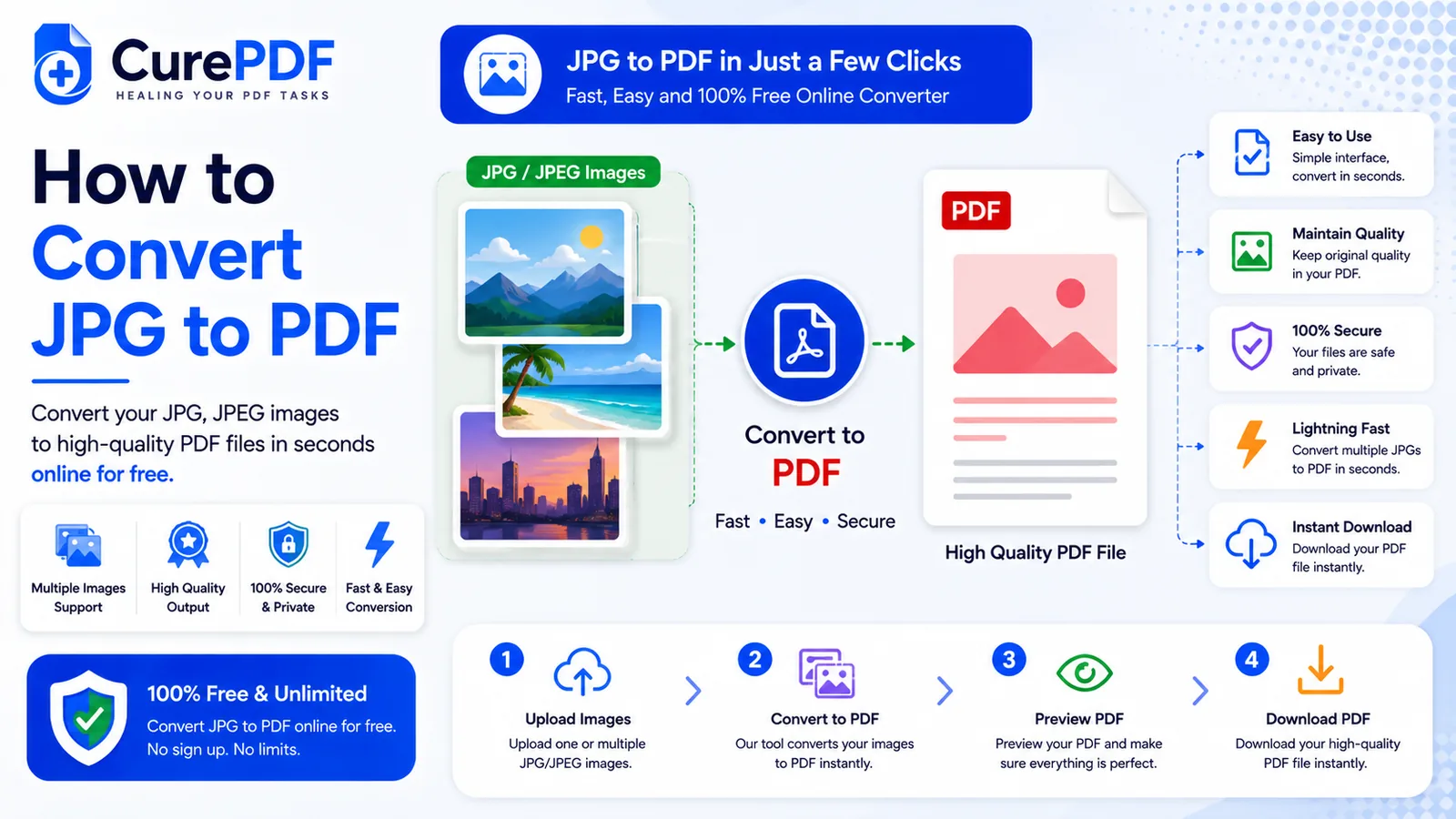
A stack of phone photos rarely counts as "a document" to whatever you're sending it to. Four snapshots of a signed lease, a handful of receipt photos for an expense report, a couple of scanned ID pages — most portals, inboxes, and forms expect one file, not a scattered set of JPGs the recipient has to open one by one and hope they land in the right order. Turning those images into a single PDF solves that in one pass: every photo becomes a page, in the order you choose, packaged as one file you can attach or upload without explanation.
When You'll Need This
This comes up any time individual photos need to travel as one document instead of loose attachments. Photographed receipts from a business trip get combined into a single PDF before they're submitted to accounting for an expense report, so nothing gets lost or opened out of sequence. A contract signed page by page on a phone — snap a photo of each page, then combine all of them into one file to email back, rather than sending four separate images and hoping the other party reassembles them correctly. A portal that requires ID verification often specifies "PDF only," even though what you actually have is a photo of your driver's license or passport; converting the image first is what gets it accepted instead of rejected at upload.
It's also the natural next step after scanning something with your phone's camera instead of a real scanner — you end up with a folder of JPGs when what the situation actually calls for is a single shareable file. If your starting point is the opposite — you've already got a PDF and need images out of it instead — that's a different job; see how to convert PDF pages to JPG for that direction.
How to Convert JPG Images to PDF Step by Step
- Choose the JPG photos you want in the final document. CurePDF's JPG to PDF tool accepts more than one image at a time, so a whole batch of receipts or a full set of contract-page photos can go in together in one go, rather than converting each one separately.
- Arrange the images in the order they should appear once combined. Each photo becomes one page of the resulting PDF, so the sequence you set here is exactly the reading order the recipient will see — drag them into place until page 1 is actually the first thing you want someone to encounter.
- Start the conversion. The tool takes the arranged set of images and builds a single PDF from them, placing one image per page in the order you confirmed, without resizing or re-compressing the photos beyond what's needed to fit them onto a page.
- Download the finished PDF. Instead of four, six, or a dozen separate image files, you're left with one document — ready to attach to an email, upload to a portal, or save wherever the situation calls for a single file rather than a folder of photos.
Example: Turning a Photographed Lease Into One File
You've just signed a 4-page lease and the property manager wants it back by email. Instead of a scanner, you use your phone to photograph each page — page1.jpg through page4.jpg — but sending four separate image attachments feels messy, and there's a real chance one gets missed or opened out of order on the other end. You upload all four photos to CurePDF's JPG to PDF tool, confirm they're arranged in the order page1 through page4, and convert. A few seconds later you have signed-lease.pdf, a single four-page document with each photographed page in its correct place. One attachment goes out instead of four, and the property manager opens exactly one file to see the whole signed lease in the right order.
Common Mistakes to Avoid
- Uploading photos out of order and not checking the sequence before converting. Once the images become PDF pages, fixing the order means either starting over or running the result through a separate page-reordering tool afterward. Confirm the arrangement before you convert — it's a few seconds well spent.
- Using blurry or poorly lit photos. Converting to PDF doesn't sharpen anything or fix bad lighting — whatever the photo looked like going in is exactly what the resulting page looks like coming out. If a shot is hard to read, retake it before converting rather than after.
- Assuming a sideways screenshot or edited image will straighten itself out. A phone photo carries EXIF orientation data, and the tool reads that automatically, so a picture taken sideways comes out right-side up on the page without you doing anything. Screenshots and images that have already been edited or re-saved often lose that EXIF data, though, so they can still land on the page in whatever orientation the file itself is stored in. If a page comes out sideways, straighten it afterward with a page organizer.
- Combining photos when you actually meant to combine existing PDFs. If what you're really trying to do is join several already-existing PDF files rather than photos, this tool is the wrong one — see how to merge PDF files instead, which is built for combining documents rather than images.
FAQs
Can I combine multiple JPGs into one PDF, or does each become a separate file?
All the images you upload are combined into a single PDF, one image per page, in the order you set.
Does converting to PDF fix a blurry or dark photo?
No — conversion just places the images into PDF pages; fix lighting or blur issues in the photo itself first if needed.
What if a photo is sideways?
The tool reads the EXIF orientation data phones save with each photo and rotates it automatically, so most sideways phone photos come out upright without you doing anything. If a page still comes out sideways — which can happen with screenshots or images that have lost their EXIF data — use CurePDF's page organizer afterward to fix orientation.
Can I mix JPGs with PNGs or other image types?
Yes — PNG, WEBP, and BMP files are accepted right alongside JPGs in the same batch, no conversion needed first. If a PNG or WEBP has a transparent background, that transparency doesn't carry over; it's filled in with white on the resulting PDF page.
Convert Your JPGs to PDF Now
Ready to turn a set of photos into one document? Head to the JPG to PDF tool, or browse the full PDF tools collection if you need something else.