A UPI QR code lets anyone pay you by scanning it with Google Pay, PhonePe, Paytm, BHIM or any other UPI app. You don't need a payment gateway, a merchant account or an app of your own: the code simply holds your UPI ID, and the payer's app does the rest.
This guide shows how to make one for free, how to set a fixed amount, how big to print it, and how to check it's safe before you put it on a shop counter, an invoice or a delivery bag.
Quick answer: Open CurePDF's free QR Code Generator, choose UPI payment, enter your UPI ID (for example
name@okhdfcbank) and your name, and add an amount only if you want a fixed price. Download it as PNG or SVG, scan it with your own phone to check the name, and pay yourself ₹1 to test it. The code is made in your browser and never expires.
What's Inside a UPI QR Code?
A UPI QR code holds a short payment link in the standard upi://pay format that every UPI app in India understands. For example:
upi://pay?pa=name@okhdfcbank&pn=Asha%20Rao&am=250.00&cu=INR&tn=Order%201024
| Part | Meaning | Needed? |
|---|---|---|
pa | Payee address: your UPI ID, where the money goes | Yes |
pn | Payee name shown to the person paying | Recommended |
am | A fixed amount in rupees | Optional |
cu | Currency, always INR | Added for you |
tn | A note, such as an order number | Optional |
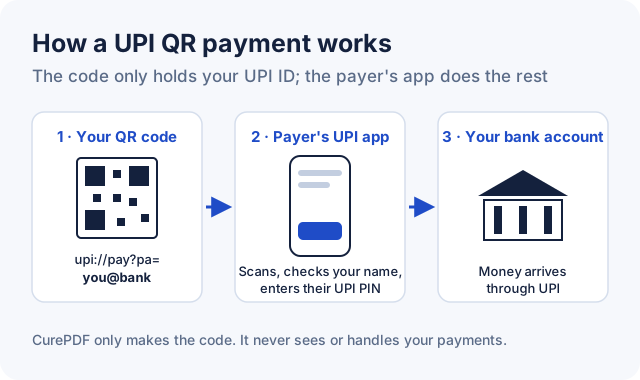
Because the details are stored in the code itself, it's a static QR code. It works for as long as your UPI ID works, and it doesn't depend on CurePDF or any other service staying online. The money moves through UPI straight to the bank account linked to your UPI ID.
How to Make a UPI QR Code, Step by Step
- Find your UPI ID. Open your UPI app and look under your profile or bank account. It looks like
name@bank, for example9876543210@yblorasha@okhdfcbank. - Open the generator. Go to the QR Code Generator and choose UPI payment.
- Enter your details. Type your UPI ID and the name you want payers to see. Leave the amount empty if customers should type it themselves.
- Add a fixed amount (optional). For a set price, such as a ₹250 ticket, enter the amount. Add a note if you want to identify the payment, like an order number.
- Design it (optional). Change the colours or add your shop logo in the centre. Keep the code dark on a light background.
- Download. Use PNG for WhatsApp, invoices and websites, or SVG for printing at any size.
- Test it. Scan it with your own phone, check that the right name appears, and pay yourself ₹1 before you print copies.
Fixed Amount or Open Amount?
- Open amount (no amount set): the payer types the amount. Best for a shop counter, tips or donations, where every payment is different.
- Fixed amount: the amount is filled in for the payer. Best for one price that doesn't change, such as a class fee, an event ticket or a single invoice.
Whichever you choose, the payer still confirms the payment with their own UPI PIN in their app.
How Big Should You Print It?
- Minimum: 2 × 2 cm (about 0.8 inches), for codes scanned up close, such as on an invoice.
- Shop counter or table: 6 to 8 cm wide, so customers can scan from arm's length.
- Wall or window: a common rule of thumb is that a code can be scanned from about 10 times its width, so a code read from 1 metre should be about 10 cm wide.
Print with good contrast on matte paper, and laminate counter displays so the code doesn't smudge. If you add a logo, the generator raises the error correction to High so the code still scans.
Stay Safe With UPI QR Codes
- You only scan to pay, never to receive. If someone asks you to scan a QR code or enter your UPI PIN to "receive" money, it's a scam.
- Check the payee name before paying, and ask your customers to do the same.
- Check printed codes now and then. Make sure nobody has stuck a different code over yours, and replace damaged copies.
- Never share your UPI PIN or OTP. Making or displaying a QR code never needs either.
Frequently Asked Questions
Is it free to make a UPI QR code?
Yes. CurePDF's QR Code Generator is free, needs no account, adds no watermark, and the code never expires.
Which apps can scan it?
Any UPI app, including Google Pay, PhonePe, Paytm and BHIM, because the code uses the standard upi://pay format.
Can I set a fixed amount?
Yes. Enter it in the Amount field. Leave the field empty if you want payers to type the amount themselves.
Does CurePDF handle or see my payments?
No. The code only holds your UPI ID and details. Payments go directly through UPI to your bank account, and the code is created in your browser, so your UPI ID isn't sent to CurePDF.
Will the QR code stop working?
No. It's a static code, so it keeps working as long as your UPI ID is active. If you change your UPI ID, make a new code.
Can I add my shop logo?
Yes. Upload it in the Design section and it's placed in the centre. Test the code after adding a logo, as you would any code before printing it.