Online application portals for exams, jobs, and government services almost always ask for a photo and a signature in a precise format: a JPG, so many pixels wide and high, and between two file sizes in KB. Get any one of those wrong and the upload is rejected, often with a vague "invalid file" message.
This guide explains how to read those requirements, how to meet them without distorting your photo, and what to do when a file is too big or too small. It uses real published requirements as examples, but the numbers for your application are always the ones printed on your own form.
Quick answer: Crop the photo to the shape the form asks for, resize it to the exact pixel dimensions, and save it as a JPG. Then check that the file size is between the minimum and maximum. CurePDF's Passport Photo Resizer and Signature Resizer handle the resizing and the maximum size in your browser.
How to Read an Upload Requirement
A line like "Photo: JPG, 200 × 230 px, 20–50 KB" is really four separate rules. Portals check each one, and failing any of them blocks the upload.
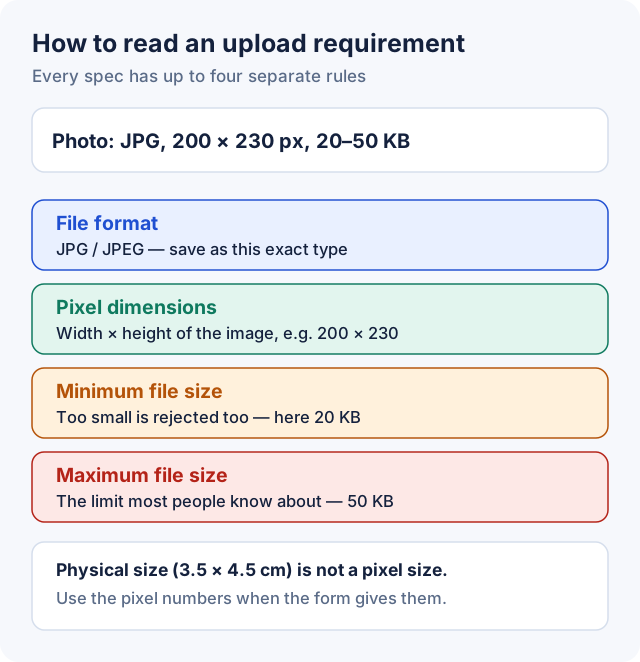
- File format. Usually JPG (also written JPEG). A PNG renamed to
.jpgis still a PNG; save it as a real JPG instead. - Pixel dimensions. The image's width × height in pixels, such as 200 × 230. Some forms give an exact size, some a range, and some say "preferred", meaning other sizes may be accepted.
- Maximum file size. The upper limit in KB. This is the rule most people know about.
- Minimum file size. Many Indian exam portals also set a lower limit, such as 20 KB. A file that's too small is rejected just like one that's too big, because it suggests an over-compressed, unreadable scan.
Forms sometimes also give a physical size, such as 3.5 cm × 4.5 cm. That describes a printed passport-size photo, not a digital file. When the form gives pixel dimensions, use those; when it gives only a physical size, match its shape (3.5 : 4.5 is a portrait rectangle) and follow any pixel or KB limits it states.
Examples of Real Requirements
Requirements differ a lot between organisations. These examples come from official instructions checked on 30 September 2026. They're here to show the kinds of rules you'll meet, not as values to use for your own application.
| Source | Photo | Signature |
|---|---|---|
| UPSC online application (instructions PDF, February 2026) | JPG, 20–200 KB, file named "photo"; face covering at least 75% of the photo; plain white background | Sign three times, one below the other, in black ink on plain white paper, scanned as one JPG named "signature"; 20–100 KB; 350–500 pixels |
| Photo and signature guidelines on IBPS's registration portal for RBI's January 2026 recruitment | JPG, 200 × 230 px (preferred), 20–50 KB; recent colour photo on a light, preferably white, background | Black ink on white paper; 140 × 60 px (preferred), 10–20 KB; signatures in CAPITAL LETTERS not accepted |
| UK passport, online application (GOV.UK) | At least 600 px wide and 750 px tall; 50 KB to 10 MB; must be unaltered by computer software | — |
Three things stand out. Two of the three set a minimum file size. UPSC's instructions ask for three signatures in one image, not one. And the UK passport service asks for a photo that is unaltered by computer software, so for that kind of application you should follow the service's own photo instructions rather than editing the photo yourself.
Common mistake: Copying sizes from a blog post or a previous year's form. Requirements change between recruitment cycles, and the same organisation can use different rules for different exams. Always take the numbers from the notification or instructions for the application you're filling in.
Step by Step: Prepare Your Photo and Signature
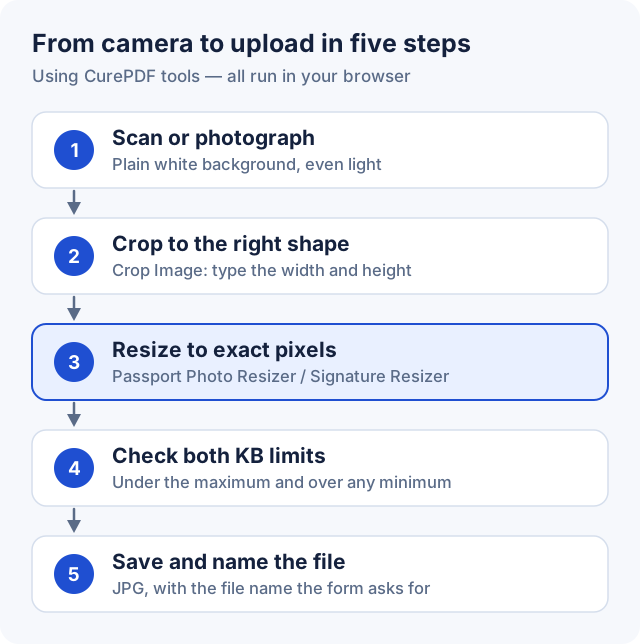
1. Take the photo or scan the signature
- Photo: stand against a plain, light background (white if the form says so), face the camera directly, and use even light with no shadows on your face. Don't wear dark glasses or a cap unless the form allows it.
- Signature: sign on plain white paper with a black pen, unless the form asks for something else. Lined or patterned paper makes the signature harder to isolate. If the form wants more than one signature (like UPSC's three), follow its layout exactly.
- Scan or photograph in good light at a decent resolution. It's easy to make a large image smaller, but you can't add detail to a tiny one.
2. Crop to the right shape
This is the step that prevents stretched faces. If your photo is a different shape from the target size, resizing it straight to those dimensions will squash or stretch it.
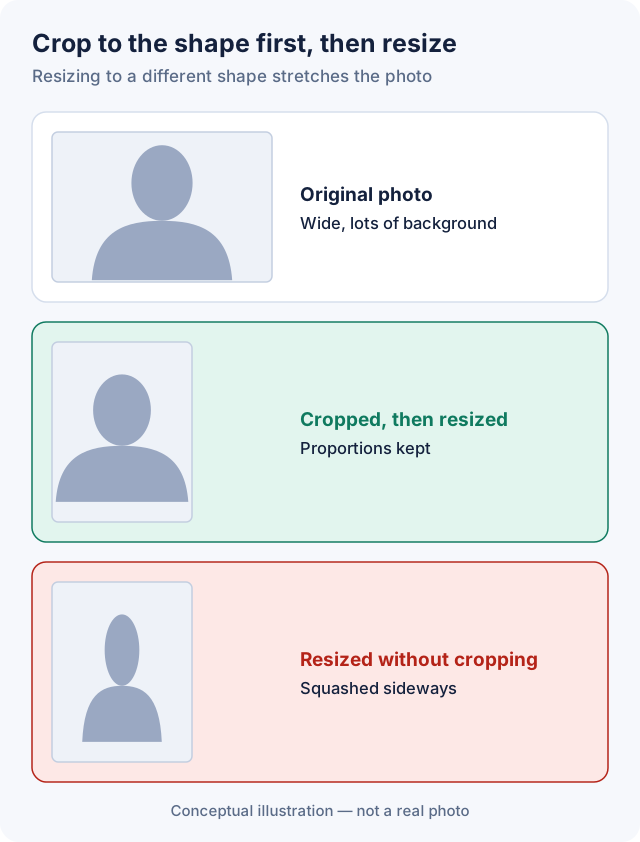
Open your photo in CurePDF's Crop Image tool and draw a crop box with the same proportions as the size you need. You can type the crop's width and height in pixels. For a 200 × 230 target, for example, a crop of 600 × 690 or 800 × 920 has the same shape. For a photo, keep your head and shoulders centred with a little space above. If the form says how much of the photo your face must cover (UPSC asks for at least 75%), crop tighter.
3. Resize to the exact pixel dimensions
- Open the Passport Photo Resizer for a photo, or the Signature Resizer for a signature, and choose your image.
- Pick a preset or type the exact width and height from your form. The output always has exactly those dimensions.
- For a signature, leave Trim blank space around the signature on. It removes the empty paper around the ink so the signature fills its box.
- If the form has a maximum file size, choose a size cap (for example, under 50 KB for the photo).
- Click Resize image, check the preview, and download the file.
Both tools run in your browser, so in the normal case your photo and signature are never uploaded to CurePDF. If your browser can't handle a very large image, the tool asks before sending anything to its server.
Tip: The presets in CurePDF's resizers are commonly requested sizes, not official requirements. When your form gives different numbers, type them into the width and height boxes instead.
4. Check both file-size limits
After downloading, check the file size (the tool shows it, or see the file's properties). It must be at most the maximum and at least any minimum the form sets.
CurePDF's size caps only set a maximum. Small images often come out below a form's minimum, especially signatures. On a test scan, CurePDF's own measurements show a 140 × 60 signature coming out at about 3 KB. That's fine for a form with a maximum-only rule, but under a 10–20 KB range like the one in the IBPS-hosted guidelines above. See "File too small" below for what to do.
5. Save with the right name and format
Downloads from the resizers are JPG files. Some portals also require a specific file name (UPSC's instructions ask for "photo" and "signature"). Rename the file before uploading if the form says so, keeping the .jpg extension.
Fixing Common Upload Errors
"File size exceeds the limit"
- Set the size cap in the resizer to the form's maximum. The tool lowers JPG quality until the file fits, and tells you if it can't get under the cap at those dimensions without visible damage.
- If it still won't fit, check that you're using the form's pixel dimensions and not a larger size.
"File size is too small" or "below the minimum"
- If the form allows a range of pixel dimensions, use the larger end. Bigger images make bigger files.
- Start from a sharper, higher-resolution scan or photo rather than a small screenshot or a heavily compressed image from a messaging app.
- If the dimensions are fixed and the file is still too small, save it again at a higher JPG quality (90–100) in an image editor that has a quality setting. CurePDF's resizers don't have a minimum-size option.
"Invalid dimensions"
- Type the exact width and height from the form. Check you haven't swapped them: 200 × 230 is 200 wide and 230 tall.
- If the form gives a range, make sure both the width and height fall within it.
"Invalid file format"
- Make sure the file really is a JPG. If you have a PNG, convert it with PNG to JPG, or run it through the resizer, which saves JPG.
- Photos from some phones are saved as HEIC. Change your camera's format setting to JPG (often called "Most Compatible" on iPhones) or export the photo as JPG first.
The photo looks stretched or blurry
- Stretched: the crop shape didn't match the target shape. Go back to step 2.
- Blurry or pixelated: the original was too small, or it was compressed too hard. Start from the original photo, not a copy that has already been resized or shared through a messaging app.
The signature is faint or broken after resizing
- Sign with a darker, thicker pen and scan in good light.
- Keep the trim option on so the signature fills the box instead of shrinking inside a wide margin.
- Check the preview at full size before downloading. If strokes have disappeared, start from a higher-resolution scan.
Other Documents: Thumb Impressions and Declarations
Some applications also ask for a left thumb impression or a handwritten declaration, each with its own size rules. (The IBPS-hosted guidelines above, for example, give 20–50 KB for the thumb impression and 50–100 KB for the declaration.) The same method works: scan clearly, crop to the right shape, resize to the stated dimensions, and check both KB limits. CurePDF's Resize Image and Compress Image tools cover documents that aren't photos or signatures.
If a portal asks for several images in one PDF instead, JPG to PDF combines them into one file.
Frequently Asked Questions
How do I resize a photo to 20 KB or 50 KB?
First resize it to the pixel dimensions your form asks for, then set a file-size cap. In CurePDF's Passport Photo Resizer, choose the width and height, pick "Under 20 KB" or "Under 50 KB", and click Resize image. The tool lowers JPG quality until the file fits.
What is the pixel size of a 3.5 × 4.5 cm passport photo?
It depends on the resolution: at 300 DPI, 3.5 × 4.5 cm is about 413 × 531 pixels. But online forms usually give their own pixel dimensions, and those are the ones to use. If a form gives only centimetres, match the 3.5 : 4.5 shape and follow any KB limits it states.
Why is my photo rejected even though it's under the size limit?
Check the other rules. The file may be below a minimum size, have the wrong pixel dimensions, or not be a real JPG. Many portals also reject photos that don't meet content rules, such as background colour or how much of the photo your face covers.
How do I increase a photo's file size to meet a minimum?
Use the largest pixel dimensions the form allows, start from a sharp original, and if needed save the JPG at a higher quality setting (90–100) in an image editor. CurePDF's resizers set a maximum file size only.
Can I resize a signature without losing quality?
Mostly, yes, if you start from a clear scan. Sign in black ink on white paper, keep the trim option on so the signature fills its box, and check the preview at full size before downloading. Very small boxes like 140 × 60 pixels will always look small, so the scan's clarity matters most.
What background should a signature have?
Plain white paper, unless your form says otherwise. It gives the clearest contrast and makes automatic trimming reliable. Lined or coloured paper can be rejected.
Are my photo and signature uploaded to CurePDF?
No, not in the normal case. The Passport Photo Resizer and Signature Resizer process your image in your browser. If your browser can't handle a very large image, the tool asks before offering to process it on CurePDF's servers, and nothing is sent unless you agree.
Do CurePDF's presets match official requirements?
No. They're commonly requested sizes, and CurePDF doesn't verify them against any authority. Always type in the exact dimensions and limits from your own form.
Ready to prepare your files? Open the Passport Photo Resizer or the Signature Resizer, with your form's requirements next to you.