"File size must not exceed 200 KB." Application portals, KYC forms, and email services all set upload limits, and a scanned PDF can easily be ten times over. Compressing it to fit is usually quick, but only if you know what compression can and can't do. Otherwise you end up with an error, or a file so blurry it gets rejected anyway.
This guide explains how to compress a PDF to a specific size such as 100 KB, 200 KB, or 5 MB, what sizes are realistic for different kinds of PDF, and what to do when a file won't go small enough. The numbers come from running CurePDF's own compressor on test documents.
Quick answer: Open CurePDF's Compress PDF tool, upload your file, switch to Custom target size, enter the limit (for example 200 KB), and click Compress PDF. The tool finds the closest size under your target that it can reach without wrecking the file, and tells you if the target isn't possible.
What Makes a PDF Big (and What Compression Can Shrink)
A PDF's size mostly depends on the images inside it. Scanned documents are the extreme case: each page is a photo of paper, stored at high resolution. Typed documents made in Word or Google Docs are mostly text and fonts, which take very little space.
Compression works on images. CurePDF's compressor makes each image smaller and saves it at a lower quality, then cleans up unused data in the file. Text stays sharp because it isn't touched. That gives a simple rule: the more of your PDF is images, the more it can shrink.
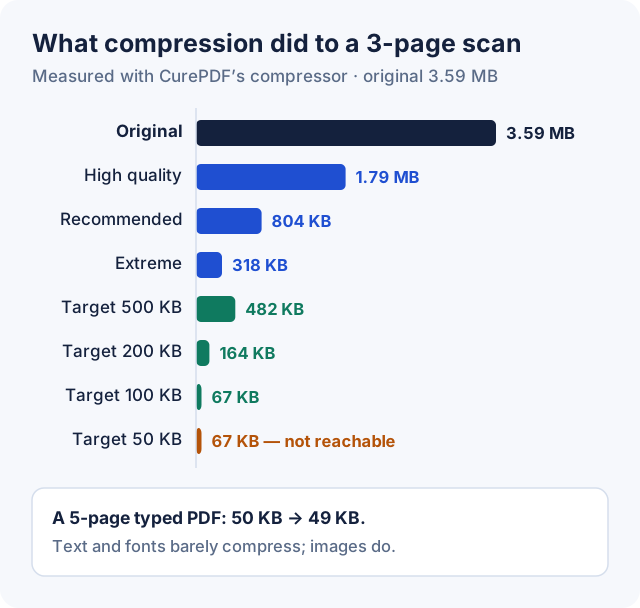
Our test documents were a 3-page scan (made at 200 dpi, 3.59 MB) and a 5-page typed PDF with an embedded font (50 KB):
- The scan shrank a lot: to 804 KB with the default setting, and to 164 KB with a 200 KB target.
- Asking for 50 KB was too much. The tool returned its smallest safe result, 67 KB, and said the target wasn't met.
- The typed PDF barely changed, from 50 KB to 49 KB, because it has no images. It was already small.
What Size Is Realistic?
| Target | Typed PDF (Word, forms, resumes) | Scanned or photo-heavy PDF |
|---|---|---|
| 5 MB and above | Almost always already under it | Usually easy |
| 1–2 MB | Usually already under it | Usually fine for a handful of pages |
| 200–500 KB | Often already under it | Realistic for a few pages; text stays readable |
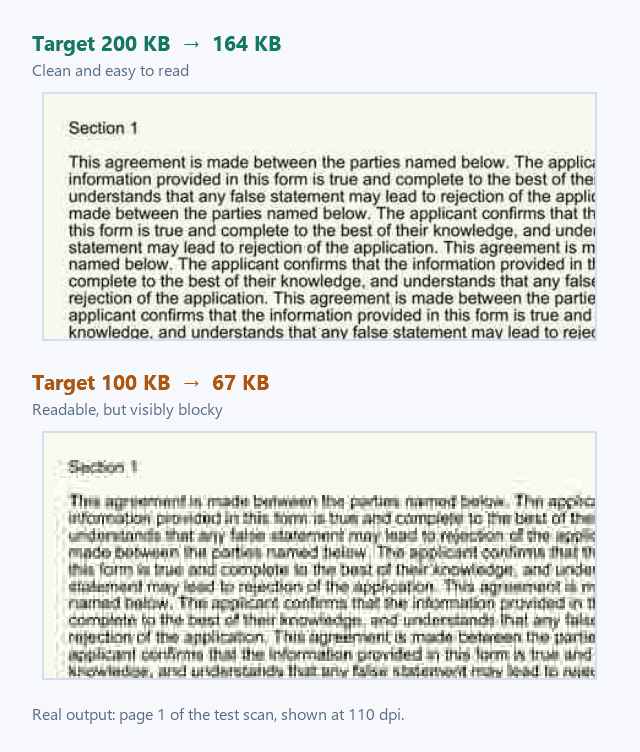
| 100 KB | Realistic for short documents | Possible for 1–3 pages, but images soften |
| 50 KB or less | Short text-only documents | Often not reachable without making text hard to read |
Page count matters as much as the target. Every scanned page adds its own image, so a 10-page scan needs roughly ten times the budget of a single page for the same quality.
How to Compress a PDF to an Exact Size
- Open Compress PDF and upload your file (up to 100 MB).
- Switch to the Custom target size tab.
- Enter your limit and choose KB or MB, or use a quick-set button (200 KB, 500 KB, 1 MB, 2 MB, 5 MB).
- Click Compress PDF.
- Check the new size, shown next to the original, and open the file to make sure it's still readable before you upload it anywhere.
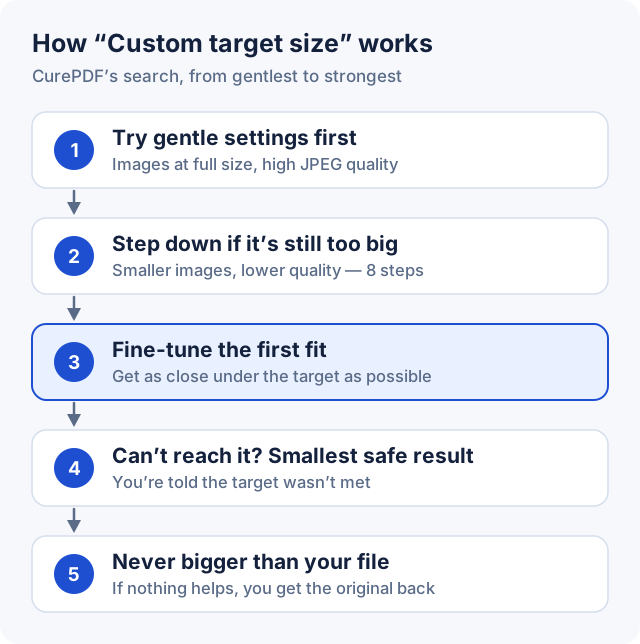
Behind the scenes, the tool tries up to eight settings, from full-size images at high quality down to much smaller, lower-quality images. It stops at the first setting that fits, then fine-tunes the quality to get close to your target without going over. If even the strongest setting can't reach the target, you get the smallest result it could make, with a note saying so. You never get back a file bigger than the one you uploaded.
Tip: Aim slightly under the limit, for example 190 KB for a 200 KB cap. CurePDF counts 1 KB as 1,024 bytes, but some websites count it as 1,000, so a file that's exactly "200 KB" in one place can be rejected as 204 KB somewhere else.
Or use a quality preset
If you don't have a specific limit, the presets are quicker:
- High quality: light compression, for files you might print.
- Recommended: the default; a solid size drop with everyday quality.
- Extreme: the smallest file; images get noticeably softer.
When the File Still Won't Fit
If the tool says it couldn't reach your target, compressing harder isn't the answer. The next steps change what's in the file:
- Remove pages you don't need. Portals often want one specific page, such as the front of an ID or the last page of a form. Delete blank or extra pages with Organize PDF, or pull out just the pages you need with Split PDF, then compress.
- Rescan at a lower resolution. Resolution has a big effect. In our test, the same three pages scanned at 300 dpi were 7.3 MB, at 200 dpi 3.6 MB, and at 150 dpi 2.2 MB, before any compression. For printed text, 150–200 dpi is usually plenty. (Scanning in grayscale instead of colour made little difference for a black-and-white page.)
- Split the upload, if the portal allows it. Some forms accept several files, each with its own limit.
- Start from the original, not a copy. If a document has been photographed, saved as a PDF, printed, and scanned again, each round makes it bigger and blurrier. A PDF exported directly from Word or your bank's website is usually far smaller than a scan of it.
Common mistake: Compressing a file that's already been compressed, over and over, to squeeze out the last few KB. Each round lowers image quality further, and a portal may reject a document it can't read. If the tool's smallest safe result is still too big, go back to the steps above.
Common Limits and Where They Come From
- Email attachments: personal Gmail accounts can send up to 25 MB in attachments; above that, Gmail replaces the file with a Google Drive link. Work email and other providers set their own limits.
- Job, exam, and government portals: often 100 KB to 2 MB per document. Take the number from the form itself; it can differ between documents on the same form.
- KYC and bank uploads: often a few hundred KB to a few MB per document.
CurePDF also has pages for common targets. They open the same tool with a guide for that size: 100 KB, 200 KB, 500 KB, 5 MB, for email, and for online applications.
Is It Safe to Compress PDFs Online?
CurePDF's Compress PDF tool processes your file on its server. According to CurePDF's Privacy Policy, uploaded files are deleted automatically within one hour, and their contents aren't reviewed or shared. For highly sensitive documents such as identity cards or bank statements, decide whether you're comfortable with an online tool, as you would with any website.
For more on keeping quality high while shrinking a file, see how to compress a PDF without losing quality.
Frequently Asked Questions
How do I compress a PDF to 200 KB?
Upload the PDF to CurePDF's Compress PDF tool, choose Custom target size, enter 200 KB (or a little under, such as 190 KB), and click Compress PDF. If the result is still too big, remove unneeded pages or rescan at a lower resolution.
Why won't my PDF compress to 100 KB?
Most likely it has several scanned pages or photos, and 100 KB isn't enough room for them to stay readable. The tool returns its smallest safe result instead of an unreadable file. Try removing pages or rescanning at 150–200 dpi.
Why didn't my PDF get any smaller?
It probably has no images. Typed PDFs are mostly text and fonts, which compression doesn't change, and they're usually small already. In our test, a 5-page typed PDF went from 50 KB to 49 KB.
Does compressing a PDF make the text blurry?
Not typed text: it isn't changed. In a scanned PDF, though, the text is part of the page image, so strong compression can make it soft or blocky. Always open the compressed file and check it.
Can compression make my PDF bigger?
Not with CurePDF. If compression wouldn't make the file smaller, you get your original file back.
How many pages can I compress to 200 KB?
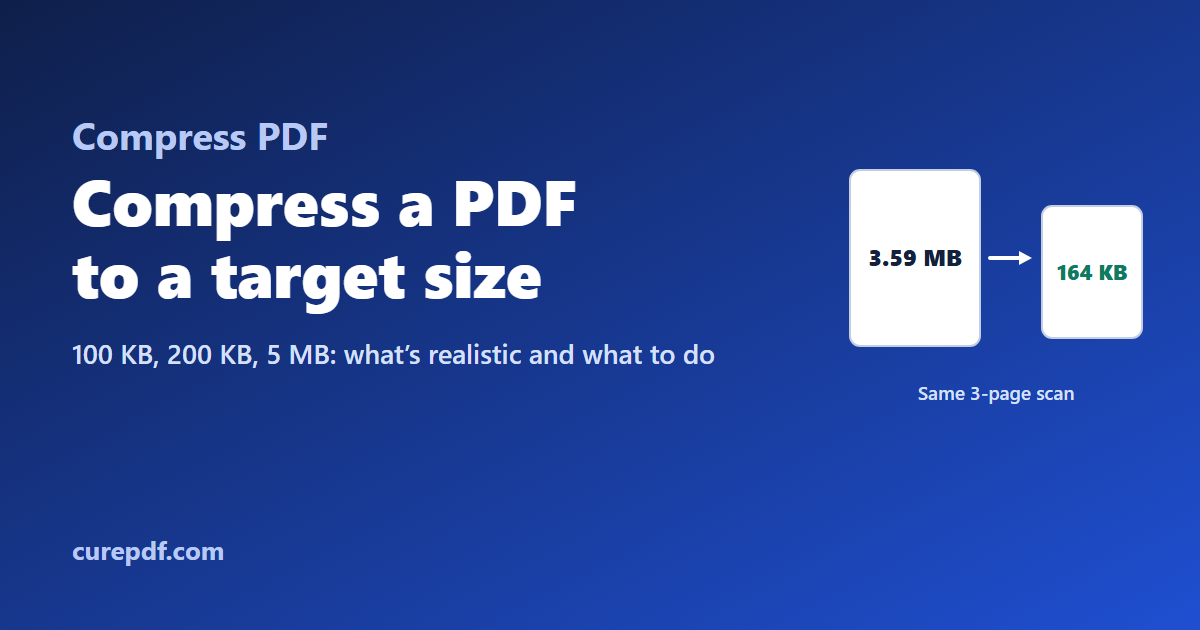
It depends on the content. For typed documents, many pages; for scans, a few. In our test, a 3-page scan fit into 164 KB with readable text.
Can I compress a password-protected PDF?
Not directly. Remove the password first with Unlock PDF (you'll need to know it), compress the file, and add protection again if you need to with Protect PDF.
Is Compress PDF free?
Yes, with no account required, for files up to 100 MB.
Have a file to shrink? Open Compress PDF, choose Custom target size, and enter your limit.