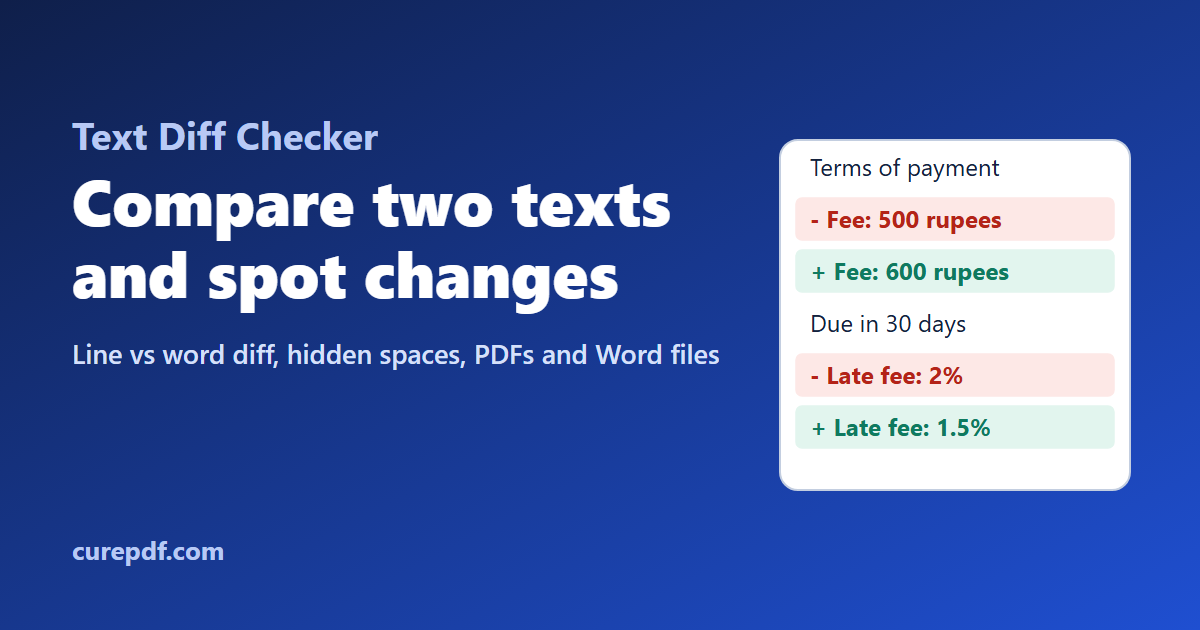
Someone sends back "the final version" of a contract, an essay, or a config file, and you need to know exactly what they changed. Reading both side by side is slow and unreliable, because the eye skips over a changed number or a missing "not". A diff checker compares two versions for you and highlights every addition and removal.
This guide shows how to compare two texts, when to compare by line or by word, why identical-looking lines sometimes show as changed, and how to compare PDF and Word documents.
Quick answer: Paste the original text on the left and the changed text on the right in CurePDF's Text Diff Checker, choose Compare by line or Compare by word, and click Compare. Additions are highlighted in green; removals in red with a strikethrough.
What Is a Diff?
A diff (short for "difference") is a list of the changes that turn one text into another: what was added, what was removed, and what stayed the same. Software developers use diffs every day to review code. The same idea works for any text, including contracts, policies, articles, product descriptions, translations, and lists.
CurePDF's Text Diff Checker runs in your browser, so neither version of your text is sent to CurePDF's servers. That matters when you're comparing a contract or anything else confidential.
How to Compare Two Texts
- Open the Text Diff Checker.
- Paste the original (older) version in the left box.
- Paste the changed (newer) version in the right box.
- Choose Compare by line or Compare by word.
- Click Compare.
The result shows the text once, with removed parts in red and struck through, added parts in green, and unchanged text in between. Above it, a summary counts the added and removed lines (or words, in word mode). Copy diff copies a plain-text version, with + and - at the start of each added or removed line. That's handy for pasting into an email or a ticket.
Tip: Put the older version on the left every time. If you swap them, additions appear as removals and the other way round. The text is still correct, but it's confusing to read.
Compare by Line or by Word?
| Mode | What it marks | Best for |
|---|---|---|
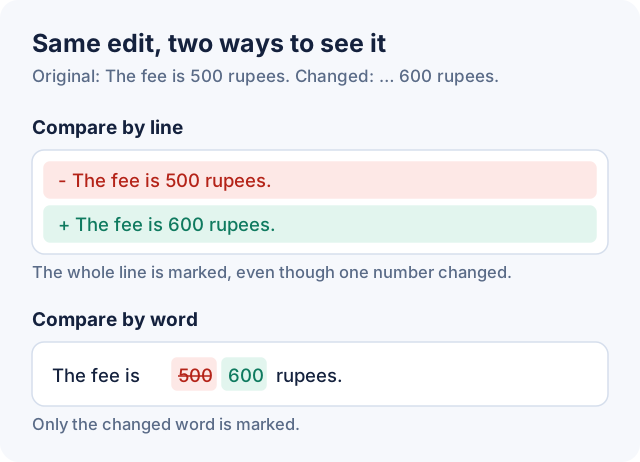
| Compare by line | Whole lines. If even one character changes, the line shows as removed and re-added. | Code, config files, lists, and structured documents; finding where changes are in a long text |
| Compare by word | Only the words that changed, within the line. | Prose, contracts, and emails; spotting small edits inside long sentences or paragraphs |
For long documents, use both. Compare by line first to find which sections changed, then switch to word mode to read exactly what changed in them.
Why Identical-Looking Lines Show as Changed
Computers compare characters, not appearance. Some differences are invisible on screen, and the two modes treat them differently. We tested each case below in CurePDF's Text Diff Checker:
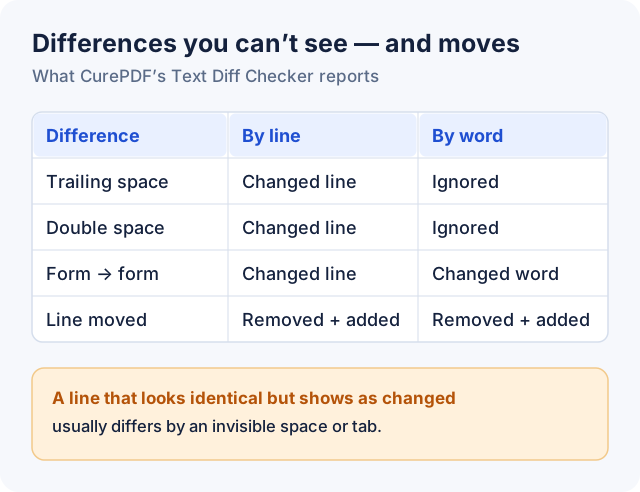
- Trailing spaces and tabs. A space at the end of a line is invisible but makes the line different. Line mode flags it; word mode ignores spacing.
- Double spaces. Same as above: flagged by line mode, ignored by word mode.
- Capitalisation. "Form" and "form" are different in both modes. The comparison is case-sensitive.
- Moved text. If a paragraph moved but didn't change, it appears as removed from its old position and added at its new one. A diff shows edits, not moves.
If spacing differences are just noise, clean both texts first. CurePDF's Line Tools has a Remove extra spaces option that trims the start and end of every line and collapses repeated spaces. Run it on both versions, then compare.
Tip: Comparing two lists where the order doesn't matter, such as email addresses or product codes? Sort both lists A→Z in Line Tools first. Otherwise one moved entry makes the whole list look different.
How to Compare Two PDF or Word Documents
The Text Diff Checker compares plain text, not files. To compare two PDFs or Word documents, get the text out of each version first.
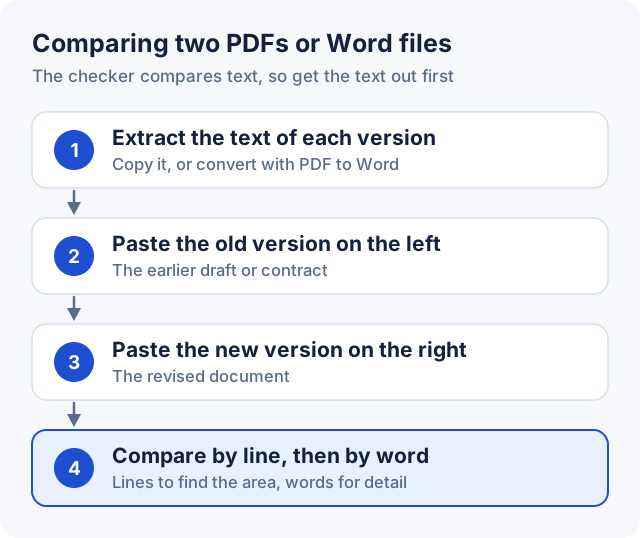
- Extract the text of each version. For a Word document, select all (Ctrl+A), then copy. For a PDF, select and copy the text in your PDF viewer, or convert it to an editable document with PDF to Word and copy the text from there.
- Paste the old version on the left and the new version on the right.
- Compare by line to find the changed areas, then by word for the details.
Know the limits of this approach:
- Only text is compared. Changes to formatting (bold, fonts, colours), images, and layout don't show up.
- Line breaks can differ between copies. Text copied from a PDF often breaks lines where the page did, so a reflowed paragraph can look like many changed lines. Word mode is more forgiving here.
- Scanned PDFs don't contain text. If you can't select the text in a PDF, it's an image of a page, and there's nothing to copy.
When formatting changes matter, use a document tool that tracks them. Microsoft Word, for example, has Review › Compare, which compares two versions of a document including formatting. For wording changes, pasting the text into a diff checker is quick and works the same for any source.
Everyday Uses for a Diff Checker
- Contracts and agreements: confirm the "final" version only contains the changes you agreed.
- Essays and articles: see what an editor or co-author changed.
- Code and config files: check what changed between two snippets or settings exports.
- Website copy: compare a page's text before and after an update.
- Data exports: spot changed rows between two versions of a list (sort them first).
- AI-edited text: see exactly what a writing assistant rewrote before accepting it.
Frequently Asked Questions
How do I compare two texts for differences?
Paste the original text on the left and the changed version on the right in a diff checker such as CurePDF's Text Diff Checker, then click Compare. Added text is highlighted in green and removed text in red with a strikethrough.
What's the difference between line and word comparison?
Line comparison marks whole lines that changed, which suits code and lists. Word comparison marks only the individual words that changed, which suits prose and contracts.
Why does a line show as changed when it looks the same?
It usually differs by something invisible, such as a trailing space, a tab, or a double space. Line mode counts those; word mode ignores spacing. Use Line Tools' Remove extra spaces on both texts to clean them first.
Is the comparison case-sensitive?
Yes. "Form" and "form" are treated as different in both line and word mode.
Can I compare two PDF files?
Not as files, but you can compare their text. Copy the text from each PDF, or convert them with PDF to Word, and paste both versions into the Text Diff Checker. Formatting and images aren't compared, and scanned PDFs without selectable text can't be compared this way.
Does it detect moved paragraphs?
No. A moved paragraph appears as removed from one place and added in another.
Is my text uploaded anywhere?
No. The comparison runs entirely in your browser, and neither text is sent to CurePDF's servers.
Is there a limit on how much text I can compare?
CurePDF doesn't set one, and there's no account or usage limit. Very long texts take longer to compare because the work happens on your own device.
Have two versions to check? Open the Text Diff Checker and paste them in.