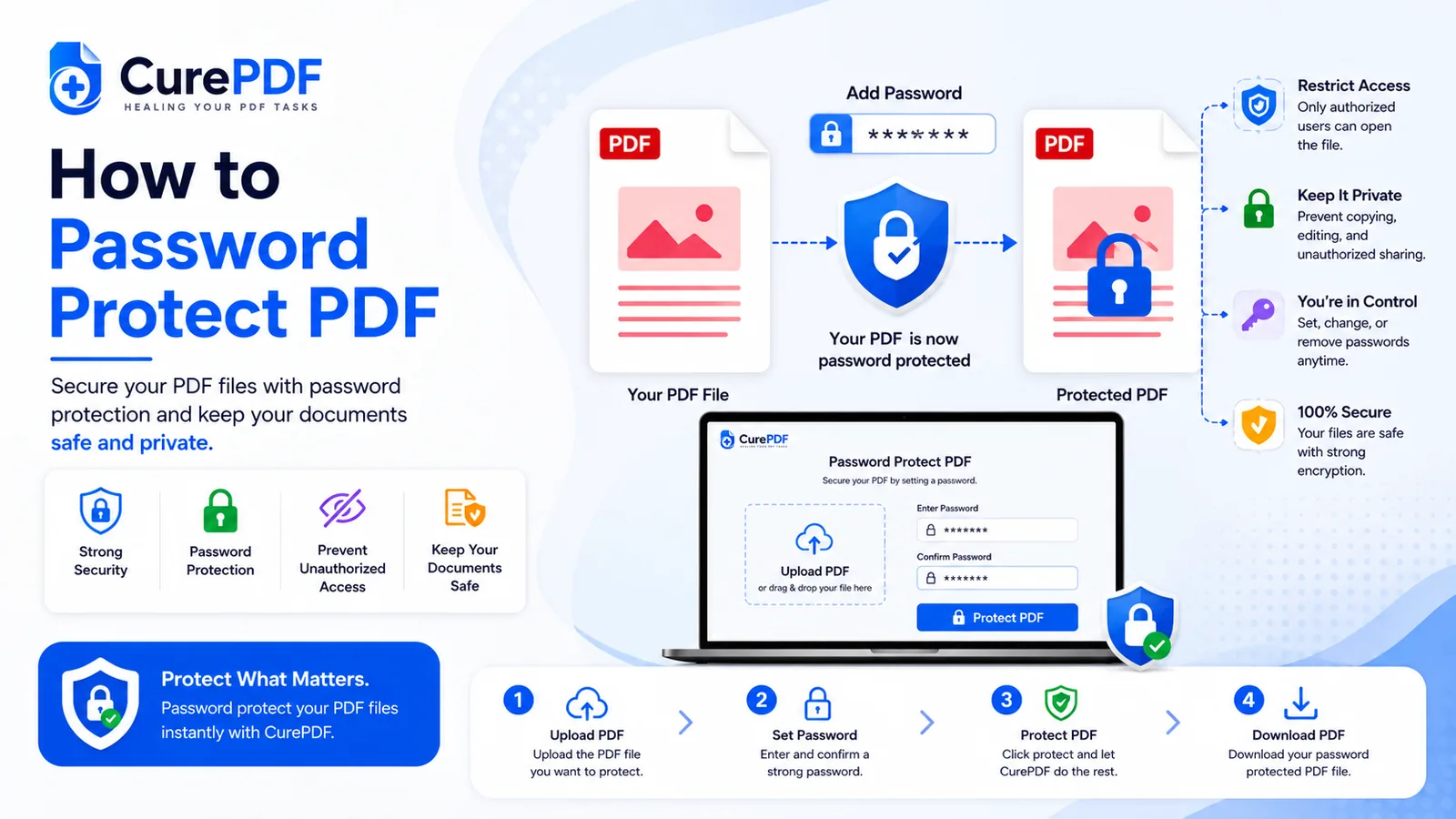
Sensitive documents—tax returns, medical records, signed contracts—travel constantly via email, and anyone who intercepts that email can open them without permission. A password-protected PDF changes that equation. Only someone with the password can view the file, so you control who gets access regardless of what happens during transmission. Adding password protection takes just a few seconds, requires no special software, and works across every device that opens PDFs, making it one of the simplest ways to secure files you're sending through channels you don't fully control.
When You'll Need This
Password protection becomes essential whenever you're emailing a document you'd rather keep private. A tax return headed to an accountant contains income, deductions, and financial details that shouldn't be readable by a mail server or a compromised email account. Payroll statements or HR documents sent to an employee include salary, tax withholding, and personal information—exactly the kind of data that needs encryption in transit. These packets often bundle several pay stubs or scanned enrollment forms into one large file; if the size is pushing against your email provider's attachment limit, compressing the PDF before you encrypt it keeps the protected file easy to send. A signed NDA or confidentiality agreement meant for one recipient only should be unreadable if intercepted, ensuring the party you're sharing it with is the only one who can access it.
Beyond email, password protection safeguards files stored on shared drives, cloud services, or devices that might be lost or accessed by others. Even if someone gains physical or digital access to a device containing sensitive PDFs, they can't open them without the password you set.
How to Password Protect a PDF Step by Step
- First, open CurePDF's Protect PDF tool. There's nothing to download and no account to set up beforehand — load the page and the encryption tool is right there, ready for your file.
- Add your PDF next: drag it onto the drop zone, or use the file browser to pick it from your computer. Whether it's a two-page NDA or a lengthy scanned contract, file size isn't a barrier — the upload simply takes a little longer for bigger documents. A short progress bar confirms the file has made it to the server.
- Set a password for your PDF. Choose a strong password you'll remember—one that combines uppercase letters, numbers, and symbols. Type it once, then confirm it by entering it again to ensure there are no typos. This is your only chance to set the password before encryption, so double-check it matches what you intend.
- Click Protect. The tool encrypts your file with the password you provided, making it unreadable without that password. Processing completes within seconds for most PDFs.
- Download your protected PDF. Once encryption is complete, download the file to your device. Your file is processed entirely in memory for the duration of that request — it's never written to persistent storage on CurePDF's servers, so nothing of it lingers once your download is delivered.
- Share the password through a separate channel from the file itself. Send the PDF by email, cloud storage, or any method you prefer, but deliver the password by text message, phone call, or a different email entirely. This ensures that even if someone intercepts the email containing the file, they can't open it without the password you sent separately.
Example: Protecting a W-2 Before Sending to Your Accountant
You're preparing to file your taxes and need to send your W-2 to an accountant for review. The form contains your full name, Social Security number, employer details, and annual income—exactly the kind of information that puts you at risk if the email gets intercepted. You download the W-2 PDF from your employer's portal and upload it to CurePDF's password protection tool. You set a strong password like "T@xR3turn2024," confirm it, and within 10 seconds your 6-page W-2 is encrypted. You download the protected file and email it to your accountant's address, then send a separate text message with the password. If the email is intercepted, the W-2 remains locked—the recipient can see that a file arrived but can't open it without the password you sent by text. Your accountant receives both pieces, enters the password, reviews your W-2, and proceeds with your return. No sensitive financial data ever travels in plain text, and the two-channel delivery ensures protection even in worst-case scenarios.
Common Mistakes to Avoid
- Sending the password in the same email as the file. This defeats the entire purpose of encryption. If an attacker intercepts the email, they now have both the locked file and the key to open it. Always send the password separately—by text, phone call, or a different email entirely—so that intercepting one message alone doesn't give someone full access. The whole advantage of password protection is lost if convenience makes you put both pieces in the same place.
- Choosing a weak or guessable password. A password like "123456" or "password" provides almost no real protection; an attacker with access to the file can crack it in seconds. Use a password that's at least 12 characters long and includes uppercase letters, numbers, and symbols. Avoid dictionary words, birthdays, or any pattern someone could guess if they know you. A strong password is the difference between genuine encryption and theater.
- Forgetting the password after you've protected the file. Unlike a typical website password, there's no "reset" or "forgot password" option for encrypted PDFs. If you forget the password, the file becomes permanently inaccessible—not just to others, but to you as well. Before you send a protected PDF, write the password down in a secure location like a password manager. A 30-second backup saves you from future frustration.
- Over-protecting files that don't need it. Password protection adds a step for every recipient who needs to open the file. If you're sharing an internal team document or a public-facing guide, password protection creates friction without real security benefit. Reserve password protection for genuinely sensitive documents—financial records, personal information, confidential agreements—where security justifies the extra step for the recipient. For files you want to discourage unauthorized sharing of, consider pairing password protection with a watermark to add a visible deterrent.
FAQs
What happens if I forget the password?
There's no way to recover a lost password from an encrypted PDF—keep a copy of it somewhere safe, like a password manager, before you forget.
Does password protection stop someone from copying the text?
Password protection controls who can open the file at all; it's a separate setting from permissions like copy/print restrictions.
Can I remove a password later?
Yes—if you know the current password, you can open the file and re-save it without one.
Is the password stored anywhere by CurePDF?
No—the password is applied to your file for encryption and isn't stored separately by the tool.
Protect Your PDFs Now
Ready to add password protection to your sensitive documents? Head to the Protect PDF tool, or browse the full PDF tools collection if you need something else.