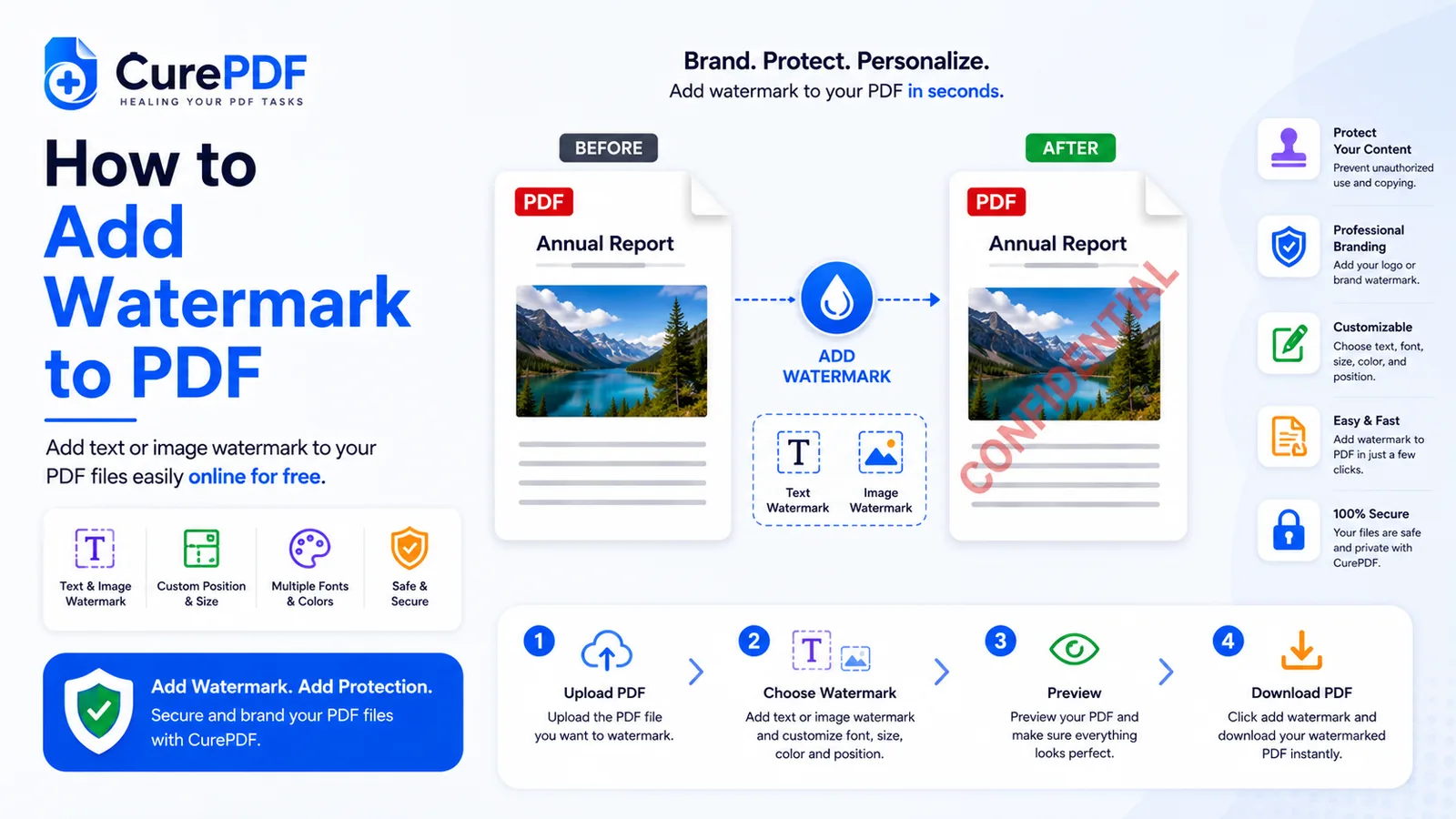
You send over a draft contract, a pricing proposal, or a design mockup that still needs another round of edits, and somewhere along the way it stops looking like a draft. Someone treats the numbers as final, or forwards the file to a client before you've had a chance to revise it. A plain PDF gives no visual cue that what's inside is still in progress — the fix is a watermark stamped across every page, so anyone who opens the file sees "DRAFT" or your company name before they read a word of the content itself.
When You'll Need This
Watermarking earns its place in your workflow anytime a document could be mistaken for something it isn't yet. Marking a proposal "DRAFT" before it goes out for internal review keeps reviewers from signing off on numbers that are still moving, and keeps an early copy from being treated as the final quote if it leaks past the review group. Stamping a company name across a portfolio shared with a prospective client protects work samples from being lifted and presented as someone else's, while still letting the client evaluate the work clearly. If you're assembling that portfolio from several separate files, merge them into one PDF first, then apply the watermark to the combined document so every page carries the same consistent mark instead of stamping each file separately. Confidential HR documents — offer letters, performance reviews, disciplinary records — benefit from a "Confidential" watermark that reminds anyone who sees the file, even briefly on a shared screen, that it isn't meant for general circulation.
How to Add a Watermark to a PDF Step by Step
- Drag your PDF onto CurePDF's Watermark PDF tool, or browse for it from your device. The file loads straight into the watermark editor, with a live preview of the page you're about to stamp.
- Type the text you want stamped across the document. This is the step that makes watermarking different from most other PDF edits: enter "DRAFT," "CONFIDENTIAL," your company name, or any custom wording, and that exact text becomes the label every reader sees before anything else on the page.
- Adjust the position and opacity if the defaults don't suit your file. Move the watermark toward the center, a corner, or diagonally across the page, and lighten or darken it so it stays legible without burying the text underneath — a dense, dark stamp over a page full of fine print can make the original content hard to read.
- Click Apply. The tool stamps your chosen text onto every page of the document in one pass, matching the position and opacity you set, so there's no need to repeat the process page by page.
- Download the watermarked PDF. Every page now carries the mark consistently, and the file is ready to share, print, or attach to an email exactly as it is.
Example: Watermarking a Pricing Proposal Before Sign-Off
You've put together a 10-page pricing proposal for a new client, but the numbers on pages 4 and 7 are still waiting on approval from your finance team. Before circulating it internally for feedback, you upload the PDF to CurePDF's watermark tool and type "DRAFT — Not Final Pricing" as the watermark text. You angle it diagonally across the page and set the opacity low enough that reviewers can still read every line item underneath. In a few seconds, the tool applies the mark to all 10 pages and you download the result. When a colleague forwards the proposal to a manager for a quick sanity check, there's no risk of it being read as a finished quote — the watermark makes the status obvious on every single page, not just the cover sheet. Once finance signs off and the pricing is locked, you repeat the process without the watermark step and send the clean, final version to the client.
Common Mistakes to Avoid
- Making the watermark so bold it obscures the content underneath. A watermark set at full opacity in a heavy font can turn a readable page into a wall of gray text competing with your actual content. Keep the opacity low enough that line items, paragraphs, and figures remain easy to read at a glance — the goal is a visible marker, not a barrier to reading the document.
- Forgetting to watermark every version sent for review. If you watermark the first draft you circulate but send a follow-up revision without repeating the step, the unmarked file becomes the one that ends up forwarded or saved — and it carries none of the "draft" context that made the first version safe to share loosely. Treat watermarking as part of exporting each round, not a one-time step.
- Using generic text like "Sample" when something specific communicates more. A vague label tells the reader almost nothing about why the document shouldn't be treated as final. "Draft — Internal Only" or "Confidential — Do Not Distribute" sets clearer expectations than a one-word stamp, especially once the file leaves your hands and the original context is lost.
- Assuming a watermark restricts who can open the file. A watermark is a visible marker stamped onto the page — it doesn't encrypt anything or stop someone from opening the PDF at all. If you also need to control access, not just label the content, add a password to the file in addition to the watermark.
FAQs
Can I control where the watermark appears on the page?
Yes — position and opacity are both adjustable, so you can place the mark where it stays visible without covering the parts of the page that matter most.
Does the watermark apply to every page automatically?
Yes — once you apply it, the same text appears consistently across all pages of the document in a single pass, with no need to repeat the step per page.
Can I remove a watermark after adding it?
Watermarking changes the file itself, so there's no built-in way to strip it back out — if you need an unmarked copy later, start again from the original file you had before watermarking.
Will a watermark stop someone from copying my content?
No — it's a visual deterrent and an ownership marker, not an access control. It labels the document clearly but doesn't prevent copying, printing, or opening the file.
Watermark Your PDFs Now
Ready to stamp a draft label or your company name across a document? Head to the Watermark PDF tool, or browse the full PDF tools collection if you need something else.