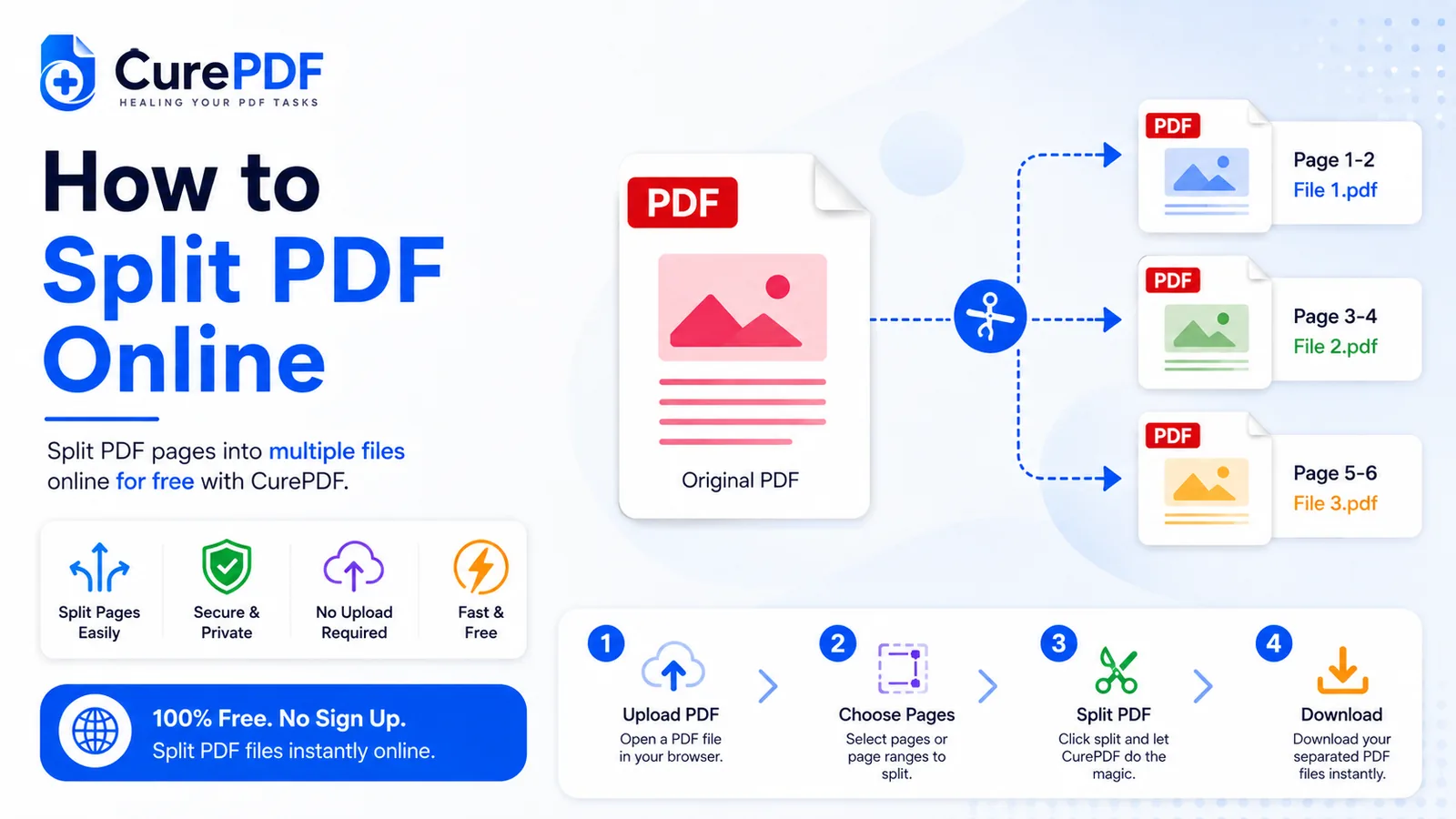
A 40-page scanned bank statement lands in your inbox, but you only need pages 3 through 5 to submit with your loan application. A lengthy contract arrives, and you need just the signature page to send to a cosigner. A batch of invoices got combined into a single PDF, and your accounting team needs them separated so each person can track their own expenses. In each of these scenarios, you're stuck with a document that contains extra pages you don't need, and manually extracting just the ones you want sounds tedious. Splitting a PDF online solves this instantly — no desktop software, no installation, and no fiddling with complicated tools. In seconds, you can extract exactly the pages you need or break a large document into smaller, manageable pieces.
When You'll Need This
Splitting PDFs is essential whenever a single document contains more information than you actually need to share or use. The most common scenario is extracting a specific range of pages from a long document. A 300-page employee handbook arrives, and you only need the benefits section (pages 47–62) to send to a colleague. A scanned 50-page property report is distributed to the entire team, but you just need the executive summary (pages 1–3). These situations happen constantly in business, education, and personal finance — documents get created as all-in-one files, but the recipient rarely needs everything inside them.
Beyond extracting ranges, you sometimes need to split a document into individual pages. A stack of combined invoices must be separated so each vendor's bill goes to the right department. A multi-chapter ebook was downloaded as one large file, and you want individual chapters on different devices. A batch of scanned receipts was processed as a single multi-page PDF, and you need to archive them as separate files for auditing. Breaking everything into individual pages, then bundling the results, lets you manage and distribute each piece independently.
How to Split a PDF Online Step by Step
- Open CurePDF's Split PDF tool in your browser — no account, installation, or signup required. Simply navigate to the tool page and you're ready to begin. The interface loads instantly in your browser.
- Upload the PDF you want to split by dragging it onto the page or selecting it from your device. The tool accepts PDFs of any size, though very large files may take a few extra seconds to process. Once your file is uploaded, you'll see a page preview or page count so you know how many pages you're working with.
- Specify how you want to split the document. You have two main options: extract a specific page range (for example, pages 3 through 5 if you only need the signature section), or split the entire document into individual pages (one PDF per page). Choose whichever matches your need, then confirm the selection.
- Run the split. Click the button to execute the operation. Processing time is typically just a few seconds, depending on the PDF's size and complexity. A progress indicator shows you that the tool is working in the background.
- Download your result. If you extracted a single range, you get one PDF file ready to download and use immediately. If you split into individual pages, the tool packages all of them together as a ZIP file so you can download everything at once, then extract and distribute the individual PDFs as needed. Nothing is stored longer than necessary to deliver your download.
Example: Extracting a Signature Page from a Lease
Imagine you have a 40-page lease agreement that's been scanned from paper. The cosigner needs to review and initial page 5 (the signature page), but you don't want to send them the entire 40-page document — that's confusing and wastes their time. Open CurePDF's Split PDF tool, upload the lease, and specify that you want to extract just pages 5 through 5 (or even just page 5, depending on how the tool presents the option). Within seconds, you get a single-page PDF containing only the signature section. You email that to the cosigner instead of the full lease, they sign it, send it back, and you know exactly which page goes where when reassembling. The process takes roughly 30 seconds from start to finish, and the recipient gets a focused, professional document instead of a baffling 40-page bundle.
Common Mistakes to Avoid
- Miscounting pages because the scanned document has an unnumbered cover sheet. Many scanned PDFs include a blank cover page at the beginning that doesn't show up in the printed page counter. If the tool shows 50 pages but the document's own numbering only goes to 49, the page you think is page 10 might actually be page 11. Double-check by previewing a few pages before committing to a range extraction — a quick visual confirmation prevents off-by-one errors that waste time.
- Splitting the entire document into individual pages when you only needed a specific range. If you actually just wanted pages 10 through 15, splitting everything into 50 separate files is overkill and creates unnecessary clutter. Be precise about what you need — extract the exact range instead of splitting everything and then manually picking out the pieces you want afterward.
- Forgetting that some split results may need to be recombined later. If you split a batch of invoices into individual files and later discover you need to send two of them together to a third party, you'll need to merge them back together. Think ahead about your workflow — if recombination is likely, you might organize your split differently upfront to save time later.
- Assuming a ZIP file of individual pages is immediately usable without checking a sample first. When you split a large document into individual pages, the result is a ZIP file with potentially dozens or hundreds of PDFs. Before you send it to someone, download it and spot-check a couple of files to ensure they extracted cleanly, especially if the original PDF had complex formatting, overlapping elements, or scanned images. Catching issues early beats discovering later that the pages are corrupted or incomplete.
FAQs
Can I extract just a few pages instead of splitting the whole document?
Yes — specify the exact page range you need instead of splitting every page individually. For example, if you only want pages 3 through 5, enter that range and you'll get a single PDF containing just those three pages. This is much faster and cleaner than splitting everything and then manually picking out the pieces.
What do I get if I split into individual pages?
One PDF per page, delivered together as a ZIP file so you can download them all at once. Once you download and extract the ZIP, you have individual PDFs for each page, which you can then rename, organize, distribute, or reorganize as needed without touching the originals again.
Does splitting affect the quality of the pages?
No — splitting just separates existing pages; it doesn't re-render, re-encode, or compress them. Text and images stay exactly as sharp and clear as they were in the original document, making this a safe operation even for high-quality files like contracts or professional documents that need to remain crisp.
Is my file kept after I download the split result?
No — processing is temporary, and files aren't kept longer than needed to deliver your download. If your PDF is processed on CurePDF's servers, the uploaded file and any intermediate files are discarded as soon as the split result is sent back to you. There's no storage of your files and no lingering copies of your document.
Split Your PDF Now
Ready to extract the pages you need or break a large document into smaller pieces? Head to the Split PDF tool, or browse the full PDF tools list if you need something else first.